I had been hearing a lot of people raving about Tailscale as a solution for interconnecting devices, or in other words for creating your own mesh VPN. It does seem great on paper: easy to set up, fast and lightweight, based on an open protocol (WireGuard), works everywhere, solves the NAT problem... However I was put off by handing a company my data, even if only metadata, and requiring personal information for sign-up. Is there no sovereign solution? Well, there is! And I will tell you step by step how to set it up.
I found the official article on how Tailscale works incredibly valuable. If you don't know the concepts of data plane, control plane, hub-and-spoke vs. mesh networks, or NAT traversal I recommend you give it a read. After all, our goal will be to self-host our own control plane.
This is the first post in a series about setting up a self-hosted Tailscale-compatible mesh VPN on my home server, with no cloud dependencies and no third-party accounts.
Goals
- A mesh VPN between my devices (phone, tablet, laptop, desktop, home server) so I can reach any of my devices from any other device from anywhere in a secure way.
- No third-party account required for login. No Google, no Apple, no GitHub, no Microsoft.
- No third-party servers involved in coordination. My devices talk to my server, and that's it.
- Works on Linux and Android (the platforms I actually use), using open-source clients. It's worth noting that other clients are closed-source, but I don't care because I don't use those platforms.
- Easy to keep updated, both clients and server.
Why not just use Tailscale's hosted service?
Tailscale is a great product and I want to be fair about this: the data plane is end-to-end encrypted with WireGuard, so Tailscale Inc. does not see any actual traffic.
But:
- They still see metadata. Every client contacts the control plane to fetch the network map. That means Tailscale would see the public IP of every device I own, every time it came online, from wherever I was. That's a lot of location history in one company's logs that I would rather avoid if I can help it. And I can, so I will.
- Identity depends on a third party. The free tier requires signing in with Google, GitHub, Microsoft, Apple, or a similar OIDC provider. If any of those suspends my account, I'd lose access to my own network.
- It's someone else's service. If Tailscale has an outage, changes pricing, pivots their product, or gets acquired, my setup would be impacted.
Architecture
The core of the architecture is based on Headscale, an open-source re-implementation of the Tailscale coordination server. It removes all three previous concerns. The official Tailscale clients work with it unchanged.
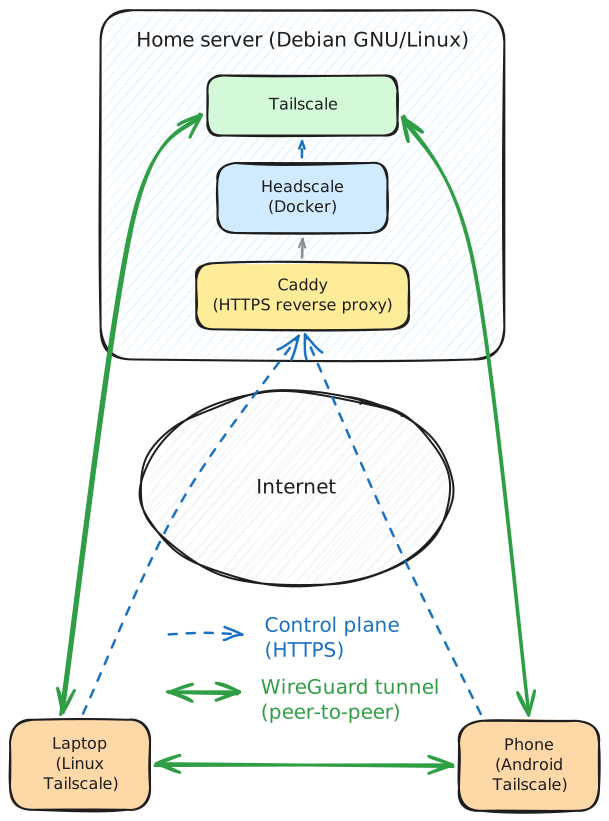
- Headscale runs in Docker Compose on my home server, behind Caddy for HTTPS.
- Tailscale clients run on each device, configured to use my Headscale instance as the control server. Each client tells the server about their network situation, and get connections to the other nodes in return.
- DNS during Part 1 uses Cloudflare. Part 2 will automatically replace the DNS on all Tailscale clients with a self-hosted tracker-blocking ad-busting Blocky DNS server.
- Clients establish direct peer-to-peer WireGuard tunnels with each other; Tailscale's public DERP relays are used only as a fallback.
Prerequisites
- A domain I control (
fidelramos.net). - A way for my home server to be reachable from the internet on ports 80 and 443. I use dynamic DNS because my ISP gives me a dynamic public IP. My server periodically updates an A record pointing
headscale.fidelramos.netto my current IP. If you have a static IP, even better. - The router forwards TCP ports 80 and 443, and UDP port 41641 to my home server. My server sits in the router's DMZ so this is automatic.
- My server, running Debian with Docker and Docker Compose installed and set up.
- Caddy with caddy-docker-proxy as a reverse proxy. I wrote about that setup in this earlier post. It's the simplest way I have found to have an HTTPS-enabled reverse proxy. It really sparks joy.
Headscale in Docker Compose
I have a compose project with other services, including a caddy service with caddy-docker-proxy as described in that post.
Add a headscale service to compose.yml:
services:
  headscale:
    image: headscale/headscale:stable
    container_name: headscale
    restart: unless-stopped
    command: serve
    volumes:
      - ${HEADSCALE_ROOT}/config:/etc/headscale
      - ${HEADSCALE_ROOT}/data:/var/lib/headscale
    networks:
      - caddy
    labels:
      caddy: headscale.fidelramos.net
      caddy.reverse_proxy: "{{upstreams 8080}}"
A few highlights:
image: headscale/headscale:stabletracks the latest stable release. I combine it with WUD for controlled updates (I will write a future post about it). You can of course do a manualdocker compose pull.- No
ports:section. Headscale is only reached internally via Caddy. - I set my
HEADSCALE_ROOTat/var/opt/headscale, but you can use whichever directory makes sense for you. - The two labels are all
caddy-docker-proxyneeds to routeheadscale.fidelramos.netto the container's port 8080.
Headscale configuration
I put it in /var/opt/headscale/config/config.yaml, but you can put it wherever works for you, just adjust the volume mapping in the compose configuration.
server_url: https://headscale.fidelramos.net
listen_addr: 0.0.0.0:8080
metrics_listen_addr: 0.0.0.0:9090
grpc_listen_addr: 0.0.0.0:50443
grpc_allow_insecure: false

noise:
  private_key_path: /var/lib/headscale/noise_private.key

prefixes:
  v4: 100.64.0.0/10
  v6: fd7a:115c:a1e0::/48
  allocation: sequential

derp:
  server:
    enabled: false
  urls:
    - https://controlplane.tailscale.com/derpmap/default
  auto_update_enabled: true
  update_frequency: 24h

disable_check_updates: true
ephemeral_node_inactivity_timeout: 30m

database:
  type: sqlite
  sqlite:
    path: /var/lib/headscale/db.sqlite

log:
  level: info
  format: text

dns:
  magic_dns: true
  override_local_dns: true
  base_domain: ts.fidelramos.net
  nameservers:
    global:
      - 1.1.1.1
      - 1.0.0.1
  search_domains: []

unix_socket: /var/run/headscale/headscale.sock
unix_socket_permission: "0770"

policy:
  mode: file
  path: ""
The bits worth understanding:
server_urlis the public HTTPS URL for the control plane. It must be reachable by clients.base_domainis the suffix used by MagicDNS for tailnet hostnames (e.g.homeserver.ts.fidelramos.net). It must not be equal to or a parent of theserver_urlhost, otherwise clients get confused.dns.nameservers.globalpushes a DNS server to every client. For now I'm using Cloudflare; in Part 2 this becomes my self-hosted Blocky instance.- DERP is disabled for embedded server mode and uses Tailscale's public DERP map as fallback relays. Using their DERPs doesn't leak traffic (it's relayed WireGuard, still end-to-end encrypted) but it's the one non-self-hosted piece, a reasonable compromise.
DNS records
Only one: an A record for headscale.fidelramos.net pointing to my home server's public IP (via DDNS). That's what clients connect to and what Let's Encrypt will verify via HTTP-01 through Caddy.
ts.fidelramos.net (the base_domain) does not get a public DNS record. It's resolved entirely inside the tailnet by Tailscale's MagicDNS. This means that only my Tailscale clients will be able to access these domains, and they not be published anywhere.
First run
At the Docker compose project:
sudo docker compose up -d
sudo docker logs -f headscale
Once the logs show the API listening and Caddy has obtained a certificate, I confirm the control plane is reachable:
curl https://headscale.fidelramos.net/health
Should return {"status":"pass"}.
Creating a user and pre-auth keys
Headscale uses users as namespaces that own devices. I create one for myself:
sudo docker compose exec headscale headscale users create fidel
Then generate a pre-auth key each time I need to register a new device:
sudo docker compose exec headscale headscale preauthkeys create --user 1 --expiration 1h
The key is only valid for an hour. Long enough to register a device, short enough to not worry about leaking it.
Tailscale on Linux
Debian:
CODENAME=$(lsb_release --codename --short)
curl -fsSL https://pkgs.tailscale.com/stable/debian/$CODENAME.noarmor.gpg | \
  sudo tee /usr/share/keyrings/tailscale-archive-keyring.gpg >/dev/null
curl -fsSL https://pkgs.tailscale.com/stable/debian/$CODENAME.tailscale-keyring.list | \
  sudo tee /etc/apt/sources.list.d/tailscale.list
sudo apt update
sudo apt install -y tailscale
sudo systemctl enable --now tailscaled
Fedora:
sudo dnf config-manager addrepo --from-repofile=https://pkgs.tailscale.com/stable/fedora/tailscale.repo
sudo dnf install tailscale
sudo systemctl enable --now tailscaled
Arch Linux and derivatives:
pacman -S tailscale
sudo systemctl enable --now tailscaled
For all systems, once Tailscale is enabled, register with Headscale by using a preauth-key:
sudo tailscale up \
  --login-server=https://headscale.fidelramos.net \
  --auth-key=<preauth-key> \
  --hostname=$(hostname)
Verify:
# on client
tailscale status
# on server
sudo docker compose exec headscale headscale nodes list
The node should appear in both lists, with a 100.64.0.x address.
Tailscale on Android
The Android app talks to public Tailscale by default and there's no obvious setting to change it. I consider this obfuscation a dark pattern, understandable as they want to run a successful business, but still infuriating having to search for how to do it despite knowing the option was there somewhere.
The trick is the alternate server option, which is hidden:
- Install the Tailscale app from F-Droid, the Play Store or, my chosen way, via Obtanium using https://pkgs.tailscale.com/stable/tailscale-android-universal-latest.apk as source.
- Launch the app and cancel the attempt to log in to Tailscale.
- Once you get to the screen with the Connect button, tap the cog for the settings menu, then tap on Accounts.
- In the top-right menu on that screen, choose Use an alternate server.
- Enter your Headscale server URL (in my case
https://headscale.fidelramos.net). - Sign in. A browser page will open with instructions on what to run in the headscale server to register this client.
- As instructed, run the command in the headscale server:
sudo docker compose exec headscale headscale nodes register \
  --user 1 \
  --key nodekey:abcdef...
If you want a visual guide, I found this video with step-by-step instructions:
After registration, toggle the connect switch in the app.
tailscale status on a Linux device on the tailnet should show the phone, and it should appear in Headscale's node list as mentioned in the Linux client section.
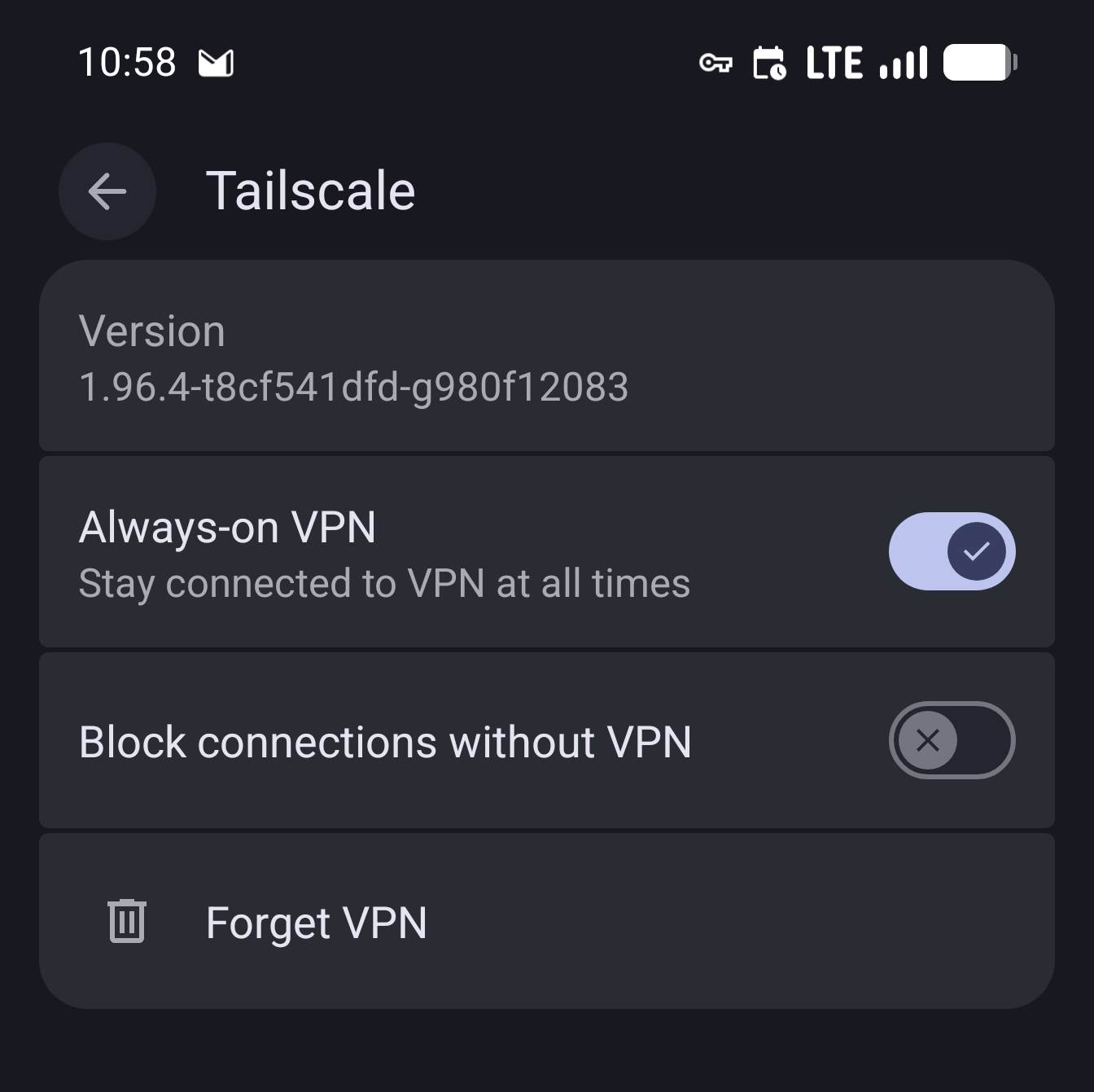
I will mention one more Android-specific thing: Tailscale gets added as a VPN service, and at least in my devices it got marked as both always-on and to block connections without VPN. I recommend leaving always-on enabled, but disable blocking connections without VPN. As Tailscale is a VPN only between your devices, if it goes down you don't get deanonymized like with a traffic-forwarding VPN, you just lose access to the VPN peers.
Other clients
I only use Linux and Android, so that's what I've covered and tested. For other platforms the Tailscale clients work the same way, just point them at the alternate server and register. The Headscale project maintains up-to-date instructions for macOS, iOS, and Windows which I won't duplicate here.
Encountered pitfalls
A few things that tripped me up along the way, collected here so you don't have to.
Wrong key
If you pass the wrong key to headscale nodes register you would get the following error:
Cannot register node: node not found in registration cache
The expected value is the nodekey:… string from the client's browser URL, not a pre-auth key. Pre-auth keys are used on the client side with tailscale up --auth-key=..., not on the server.
The registration cache is in-memory and expires after ~15 minutes, so if you take a lunch break between the client login and the server command, re-trigger the login on the client to repopulate it.
Android device appears as invalid-... node in headscale
Headscale rejects hostnames that aren't valid DNS labels (spaces, unicode, etc.).
Android sends the human-readable device name, which often fails this check (e.g. "Pixel 8 Pro" in my case).
Headscale then automatically renames the node to invalid-<hash>.
You can rename it in the headscale server after registration:
sudo docker compose exec headscale headscale nodes rename -i <node-id> pixel8pro
Purely cosmetic, but MagicDNS won't work for the original name until you do this.
Android "Not connected" with no error
If the app shows the Headscale account but sits in "Not connected" when you toggle the switch, a few things to check in order:
- Check
sudo docker compose logs -f headscalewhile toggling. You should see the client hitting/ts2021. If nothing appears, it's not reaching the server. Could be a TLS problem (check caddy's logs), DNS, firewall... - From the phone's browser,
https://headscale.fidelramos.net/healthmust succeed. - Check that DERP loaded:
sudo docker compose exec headscale headscale debug derpshould list regions. If empty, the container can't reachcontrolplane.tailscale.comfor the map, fix the container DNS or Internet egress first. - Android Private DNS: this is worth a section of its own.
Android Private DNS interferes with Tailscale bootstrap
I was using AdGuard DNS as a custom Private DNS, but it broke when Tailscale connected, leaving me without a working DNS setup, so most Internet connections wouldn't work.
I saw two errors:
- In Android network settings, Private DNS would say couldn't connect.
- Shortly after setting the custom Private DNS, a notification would pop up: Network has no internet access. Private DNS server cannot be accessed.
Luckily I was able to sidestep this issue by self-hosting my own ad-blocking DNS, and having all my Tailscale clients use it. This was even better as I would be in full control and wouldn't have to pay for AdGuard DNS any longer.
This solution will be presented in the upcoming Part 2 of this series.
MagicDNS not resolving on a specific device
After changing the Headscale DNS config, clients need to pull new settings.
On Linux, sudo tailscale up --login-server=... --accept-dns=true re-syncs.
On Android, toggle the VPN switch off and on.
Clock skew
Tailscale's noise handshake fails silently on significant clock drift. If nothing else explains a connection issue, check that NTP is working on both ends. On Android, set date/time to "automatic" in the system settings.
What's next
This setup was already functional: my devices could reach each other through my own control server, with no Tailscale nor other third-party account nor traffic. I could access apps that previously were only accessible through the LAN from anywhere.
In Part 2 I'll swap the currently configured Cloudflare DNS for a self-hosted Blocky instance to get ads and tracker blocking and internal name resolution on every tailnet device.
